
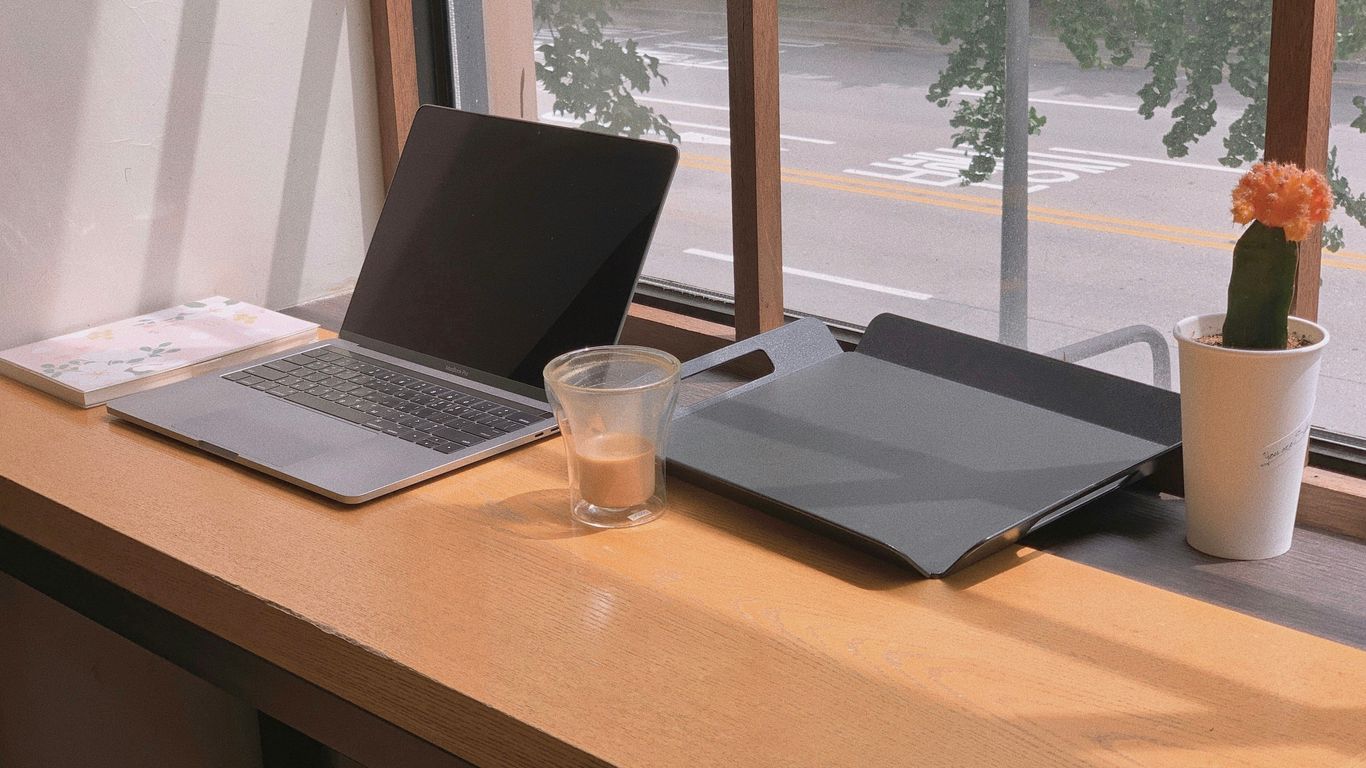
We all have those quick moments throughout the day when we need something right away. You know, like when you’re in the car and need directions, or you’re at your desk and need a quick answer, or even in the kitchen trying to figure out a recipe. These are called micro-moments, and how we design for them really matters. The idea is to make things so simple and quick that there’s almost no effort involved. This is what we call micro-friction design. It’s all about making your life easier, one tiny interaction at a time, whether it’s how your car’s dashboard works, how your computer setup is organized, or how your kitchen tools are arranged.
Key Takeaways
- Micro-friction design focuses on making user interactions incredibly simple and fast, especially during those quick, in-the-moment needs.
- Understanding what the user wants to ‘know,’ ‘go,’ ‘do,’ or ‘buy’ right now is the main driver for designing these smooth experiences.
- Good design means anticipating user needs and providing what they want without making them think too hard or wait.
- Little design details, like a button changing color when you tap it, give users confidence and make the whole experience feel more natural.
- Whether it’s your car, your desk, or your kitchen, applying micro-friction design principles can cut down on frustration and help you get things done more efficiently.
Understanding Micro-Friction Design Principles

Think about those tiny moments when you just need a quick answer or to get something done, like checking the weather before you leave the house or adding an item to your online shopping cart. That’s where micro-friction design comes in. It’s all about making these small interactions as smooth and easy as possible.
Defining Micro-Moments and Microinteractions
Micro-moments are those split-second instances driven by a user’s immediate need. They’re often sparked by a question like "What’s the fastest route?" or "How do I make this recipe?" These moments are all about intent – what the user wants to know, go, do, or buy right now. On the flip side, microinteractions are the specific design elements that respond to a user’s action. It’s the little animation when you tap a button, the confirmation sound when you send a message, or the way an icon changes when you hover over it. These two concepts work together to create a user experience that feels natural and helpful.
The User’s Intent as the Driving Force
At its core, micro-friction design puts the user’s goal front and center. We’re not trying to guess what people might want; we’re responding directly to what they do want in that exact moment. This means understanding the context – are they on their phone while walking, or at their computer at work? The design needs to adapt to these situations, making it simple to complete the task at hand without any unnecessary steps or confusion.
Frictionless Experiences for Enhanced User Journeys
When we remove the little bumps and roadblocks from these micro-moments, we create a much better overall experience. Imagine trying to buy something online. If the "add to cart" button is hard to find, or the checkout process has too many steps, you might just give up. But if it’s quick and clear, you’re more likely to complete the purchase and feel good about it. This isn’t just about making things easy; it’s about building trust and making users feel like the product or service actually understands them. It’s about making technology feel less like a tool you have to wrestle with and more like a helpful assistant.
Designing for the ‘I Want To’ Moments
People don’t just browse the internet; they have needs. They turn to their devices, usually their phones, when they suddenly need to know something, go somewhere, do something, or buy something. These are the ‘I Want To’ moments, and they’re super important for designers. If you get these moments right, you can really help people out and make them feel good about your product or service. It’s all about being there with the right answer or action exactly when they need it.
Catering to ‘I Want To Know’ Intentions
This is when someone’s just curious. They’ve got a question, and they want a quick, clear answer. Think about someone waiting for their coffee, Googling "Is dark chocolate good for you?" They aren’t looking to buy anything; they just want information. To nail this, you need to provide answers fast. Use simple language, clear headings, and make sure the important stuff is easy to spot. No one wants to sign up or download an app just to find out if chocolate is healthy. Keep it simple and direct.
- Provide concise answers upfront.
- Use scannable text with headings and bullet points.
- Optimize for search engines so people can find you easily.
The goal here is to satisfy curiosity without creating any extra work for the user. If they have to jump through hoops, they’ll just go somewhere else.
Facilitating ‘I Want To Go’ Decisions
These moments are all about location. Someone needs to find a place – a store, a restaurant, an event – nearby. Imagine a tourist who just landed and types "best pizza near me" into their phone. They’re probably tired, hungry, and want directions now. Your design should make this easy. Show a map, give real-time info like opening hours, and make it simple to get directions. Don’t hide the "Get Directions" button; make it obvious. A little animation on map pins or showing quick review snippets when they tap a location can make a big difference.
Supporting ‘I Want To Do’ Actions
Here, people need help with a task. It could be anything from figuring out how to fix a leaky faucet to learning a new recipe. They’re looking for instructions or guidance. Your design should break down complex tasks into simple steps. Use clear visuals, step-by-step instructions, and maybe even short videos. If someone is trying to assemble furniture, they don’t want to read a novel; they want to see how the pieces fit together.
- Offer clear, step-by-step instructions.
- Use visuals like diagrams or short videos.
- Allow users to easily save their progress or bookmark steps.
Streamlining ‘I Want To Buy’ Processes
This is when someone is ready to make a purchase, but they might need a little nudge or some extra info. They might be comparing products, looking for reviews, or checking prices. For example, someone on a train might search for "best noise-canceling headphones under $150." You need to make it super easy for them to find what they need and complete the purchase. Show product comparisons, review summaries, clear pricing, and a straightforward checkout process. Avoid making them sign up or dealing with hidden fees. A little animation when they add something to their cart can confirm the action instantly and make them feel good about their choice.
Optimizing Car Interactions with Micro-Friction
Driving is one of those things where you really can’t afford to be distracted. You’re moving fast, there are other people around, and one wrong move can be a big deal. So, making the stuff you have to do in the car super simple and quick is key. It’s all about cutting down on the little annoyances that can pull your attention away from the road.
Intuitive Navigation and Information Access
Getting directions shouldn’t be a whole production. Think about how many times you’ve tried to punch in an address while stopped at a light, only to have the light turn green and you’re still fumbling with the screen. That’s a prime spot for micro-friction design. The goal is to get the driver the info they need with the fewest taps and the least amount of looking away from the road.
- Voice Commands: Make them work, and make them understand natural language. Instead of "Navigate to 123 Main Street, Anytown, USA," it should understand "Take me to Sarah’s house" if Sarah is a saved contact.
- Quick Access to Recent/Favorite Destinations: A simple button to pull up your usual spots – home, work, the gym – saves a ton of typing.
- Clear Visual Cues: When directions are given, they need to be big, bright, and easy to read at a glance. Think about the next turn, distance, and estimated arrival time. No tiny fonts or cluttered maps.
The car’s interface should anticipate what the driver might need next, offering relevant options without being asked. It’s like having a co-pilot who knows the route and can quietly point out upcoming turns or traffic jams.
Seamless In-Car Entertainment Controls
Music, podcasts, audiobooks – these are the things that make long drives bearable. But fiddling with a touchscreen to change a song or adjust the volume can be a real pain, especially if the screen is a bit laggy or the buttons are small.
- Physical Controls for Key Functions: Sometimes, a good old-fashioned knob or button is best for volume or skipping tracks. You can find them by feel without looking.
- Steering Wheel Controls: These are great, but they need to be logically laid out. Play/pause, skip forward/back, and volume should be easy to find and use.
- Simple Pairing for Devices: Connecting your phone via Bluetooth or USB should be a one-time setup that works reliably every time you get in the car.
Quick Access to Vehicle Status and Settings
Checking tire pressure, fuel level, or adjusting climate control are common tasks. If these require digging through multiple menus, it adds unnecessary friction.
- Dashboard Indicators: Basic info like fuel and temperature should be immediately visible.
- Dedicated Climate Controls: Having physical buttons or a very simple, always-visible on-screen panel for temperature and fan speed is a big win.
- Easy Access to Vehicle Settings: If you need to change a setting, like how the headlights behave, it should be straightforward. Maybe a quick-access menu from the main screen or a dedicated button.
Making these interactions smooth means drivers can focus more on the road and less on wrestling with their car’s tech. It’s about making the car feel like a helpful tool, not a complicated gadget.
Elevating Desk Setups for Productivity
Okay, so we’ve talked about cars and kitchens, but let’s get real about where a lot of us spend our actual working hours: the desk. Whether you’re in a corporate office, a home setup, or a co-working space, the way your desk is arranged can seriously mess with how much you get done. It’s not just about having a comfy chair, though that’s part of it. It’s about making the whole experience of sitting down to work as smooth as possible.
Ergonomic Design for Reduced Strain
This is where comfort meets function. If you’re hunched over all day, your back and neck are going to pay for it. Good ergonomics means setting things up so your body is in a neutral, relaxed position. Think about your monitor height – the top should be at or slightly below eye level. Your keyboard and mouse should be close enough that your elbows are at about a 90-degree angle, and your wrists are straight. It sounds like a lot, but honestly, it makes a huge difference over time. You’re less likely to get those nagging aches and pains that can totally derail your focus.
- Monitor Placement: Top of screen at eye level.
- Chair Adjustment: Lumbar support, seat height for feet flat on the floor.
- Keyboard & Mouse: Close to body, wrists neutral.
Streamlined Digital Workflows
Beyond the physical setup, how you handle your digital life at your desk matters. We’re talking about making your computer and software work for you, not against you. This means organizing your files logically, using shortcuts for common tasks, and maybe even setting up specific software profiles for different types of work. If you’re constantly digging through folders or clicking through endless menus, that’s friction. Think about what apps you use most and how you can make accessing them quicker. Maybe pinning them to your taskbar or using a quick launcher tool.
The goal here is to minimize the mental load of simply getting to the task. If starting work feels like a chore because you have to fight your own computer, you’re already behind.
Accessible Tools and Information
This ties into both the physical and digital. What do you need to have handy? For physical items, it might be a notepad, a pen, or even a water bottle. For digital, it could be frequently accessed documents, a calculator app, or a reliable search engine. The idea is to reduce the number of times you have to stop what you’re doing to find something. If you’re always getting up to grab a stapler or switching tabs to look up a common piece of information, that’s time and focus lost. A well-organized desk, both physically and digitally, means the tools you need are right there when you need them.
Here’s a quick look at what to keep within easy reach:
- Primary Work Tools: Keyboard, mouse, monitor.
- Frequent Reference: Key documents, company wiki, calculator.
- Communication Hub: Email client, messaging app.
- Comfort Items: Water bottle, notepad, pen.
Rethinking Kitchen Setups for Efficiency
Think about your kitchen. It’s probably the busiest room in the house, right? From making breakfast to prepping dinner, and maybe even a midnight snack, it sees a lot of action. Making this space work better for you isn’t just about having fancy gadgets; it’s about how things are arranged and how easily you can do what you need to do. The goal is to make cooking and cleaning feel less like a chore and more like a smooth process.
Smart Appliance Integration
Modern kitchens can really benefit from appliances that talk to each other. Imagine your oven preheating automatically when you select a recipe on your smart display, or your fridge suggesting meals based on what’s inside. This isn’t just about convenience; it’s about reducing the mental load. You don’t have to remember to turn things on or check if you have the right ingredients. It’s about making the technology work for you, not the other way around.
- Connected Ovens: Pre-heat remotely, get cooking time alerts.
- Smart Refrigerators: Inventory tracking, recipe suggestions.
- Voice-Controlled Assistants: Hands-free operation for timers, unit conversions, and recipe steps.
Intuitive Food Preparation Workflows
How you move around your kitchen matters. A good workflow means putting things where you need them. For example, keeping your most-used spices and oils near the stove, and your cutting boards and knives close to your main prep area. It’s about setting up zones for different tasks. Think about the path you take when making a meal: grab ingredients, prep them, cook, and then serve. If these steps flow logically without you having to backtrack or search for things, you save time and energy.
A well-organized kitchen reduces the physical and mental effort required for cooking. It’s about designing the space to match the natural sequence of cooking tasks, minimizing unnecessary movement and decision-making.
Here’s a simple way to think about kitchen zones:
- Storage Zone: Fridge, pantry, cabinets for ingredients.
- Prep Zone: Counter space, cutting boards, knives, mixing bowls.
- Cooking Zone: Stove, oven, microwave, pots, pans.
- Cleaning Zone: Sink, dishwasher, trash, cleaning supplies.
Minimizing Clutter and Maximizing Space
Clutter is the enemy of efficiency. Too many things on the counter make it hard to find what you need and reduce your usable workspace. Think about vertical storage – shelves, wall racks for pots and utensils. Drawer organizers can make a huge difference too. When everything has a place, putting things away becomes easier, and finding them later is a breeze. It’s amazing how much more space you feel like you have when things are neatly stored and out of the way.
| Item Type | Storage Solution |
|---|---|
| Spices | Tiered shelf in cabinet |
| Utensils | Drawer dividers |
| Pots & Pans | Wall rack or pull-out |
| Small Appliances | Dedicated cabinet space |
The Role of Microinteractions in Micro-Moments
Think of micro-moments as the ‘what’ – those quick, intent-driven instances when someone needs something right now. Microinteractions are the ‘how’ – the tiny, often unnoticed, design elements that make those moments work smoothly and feel good. They’re the digital equivalent of a friendly nod or a helpful gesture. Without good microinteractions, even the best micro-moment strategy can fall flat.
When a user taps a button to add an item to their cart, what happens next? A good microinteraction would be the cart icon briefly animating or a small number appearing to show the item count. This isn’t just decoration; it’s confirmation. It tells the user, "Yep, I got that!" This instant feedback is key. It builds trust and stops users from tapping again, wondering if it worked.
Providing Instant Feedback and Confirmation
These small responses are vital for making users feel in control and understood. Imagine ordering food online. You select your toppings, and each choice is visually represented on the pizza graphic. That little animation of a pepperoni dot appearing or the crust getting a bit thicker? That’s a microinteraction at work. It confirms your selection without you having to read a confirmation message. It makes the process feel more direct and less like you’re just sending commands into the void.
Guiding Users Without Interruption
Microinteractions can also gently steer users in the right direction. Think about filling out a form. If you accidentally leave a required field blank, a subtle shake of the field or a brief highlight can draw your attention to it. It’s not an aggressive error message that stops you in your tracks; it’s a quiet nudge that says, "Hey, check this out." This keeps the flow going and prevents frustration.
Delighting Users with Subtle Animations
Beyond just confirmation and guidance, microinteractions can add a touch of personality and polish. A smooth transition when opening a new screen, a little bounce when an item is successfully saved, or a gentle pulse on a notification icon can make an app feel more alive and engaging. These aren’t strictly necessary for function, but they contribute to a more pleasant and memorable user experience. They’re the little touches that can make a user think, "Wow, this app just feels good to use."
The real magic happens when microinteractions are so well-designed that users don’t even consciously notice them. They simply feel the result: an interface that’s intuitive, responsive, and a pleasure to interact with. It’s about making the digital world feel a bit more human and less like a cold, mechanical process.
Key Strategies for Implementing Micro-Friction
So, how do we actually put this micro-friction idea into practice? It’s not about making things complicated; it’s about making them feel easy and natural for the person using them. Think about how people use their phones when they’re out and about, or how they want to quickly find something on their computer. It all comes down to being smart with design.
Mobile-First Design Approaches
When you’re designing for micro-friction, especially on phones, you have to remember that screens are small. You can’t just cram everything in. Instead, think about what the user needs right now. Maybe it’s a button to save something, or a quick way to add an item to a cart. It’s about putting the most important actions right where the user can easily reach them. We often use things like bottom sheets that slide up, or cards that expand, instead of those annoying pop-ups that take over the whole screen. It respects the user’s space and keeps them focused on their task.
Delivering Information and Functionality Swiftly
People don’t have a lot of patience when they’re trying to get something done quickly. If a page takes too long to load, or if it’s hard to find what they’re looking for, they’ll just leave. That’s why speed is a big deal. We need to make sure that when someone needs information or wants to do something, it happens almost instantly. This means things like compressing images, loading content ahead of time, and making sure the most important parts load first. It’s like handing someone a tool they need the second they ask for it, instead of making them search through a toolbox.
Simplifying Interfaces and Actions
This is where we really cut down on the ‘thinking’ part for the user. If there are too many choices, people get stuck. We need to make the options clear and the steps obvious. What does the user want to do? Let’s say they want to order a pizza. They pick their toppings, right? We shouldn’t overwhelm them with a hundred different sauce options all at once. Instead, present the choices in a way that makes sense, maybe step-by-step, so they can easily build their perfect pizza without feeling lost. It’s about guiding them without making them feel pushed.
The goal is to make the digital experience feel less like a chore and more like a helpful assistant. When a user feels in control and their actions are confirmed quickly and clearly, they build trust. This trust is what brings them back.
Here are some ways to keep things simple:
- Prioritize the core task: What is the absolute main thing the user wants to achieve in this moment?
- Reduce visual clutter: Get rid of anything that doesn’t directly help the user complete their goal.
- Use clear, concise language: Avoid jargon and make button labels obvious.
- Provide immediate feedback: Let the user know their action was received, even if it’s just a subtle animation or a change in the interface.
Testing and Iterating for Optimal Experiences
So, you’ve put together a slick setup, right? Whether it’s your car’s dashboard, your desk, or the kitchen counter, you think you’ve nailed the micro-friction thing. But how do you really know if it’s working? You gotta test it. And not just once, but over and over. It’s like tuning an instrument; you adjust until it sounds just right.
Validating Designs in Real-World Conditions
Forget testing in a quiet lab. People use these things when they’re busy, distracted, or maybe even a little stressed. Your car’s navigation needs to work when you’re trying to find a new address in the rain. Your desk setup should help you focus when deadlines are looming. The kitchen tools need to be easy to grab when you’re juggling multiple tasks. So, watch people use your designs in their actual lives. See where they stumble, where they hesitate, and where they just breeze through. That’s where the real insights are.
Using Behavioral Data for Refinement
Numbers don’t lie, usually. Tracking things like how long it takes someone to complete a task (time-to-task) or where they drop off in a process can tell you a lot. Did that new button placement actually make people click it faster? Are they finishing their grocery list without getting sidetracked? Look at metrics that show speed and success. For example:
| Metric | What it Shows |
|---|---|
| Time-to-Task | How quickly users finish a specific action. |
| Conversion Rate | How often users complete a desired outcome. |
| Drop-off Points | Where users abandon a task or process. |
| Engagement Metrics | Clicks, taps, scrolls, and interaction patterns. |
This kind of data helps you pinpoint exactly what’s causing friction, even if it’s just a tiny bit.
Continuous Improvement Based on User Feedback
Data is great, but sometimes you need to just ask people. Surveys or quick chats can reveal frustrations that numbers might miss. Maybe a button is easy to tap, but the label is confusing. Or perhaps the layout is clean, but it doesn’t feel intuitive for someone new. Combine what people do (the data) with what they say (the feedback).
It’s easy to get attached to your own ideas, but the goal is to make things easier for others. If users are struggling, even with something you thought was simple, it’s time to rethink it. Don’t be afraid to make changes based on what you learn.
This cycle of testing, gathering data, and listening to users is how you keep making things better, bit by bit.
Avoiding Pitfalls in Micro-Friction Design

Even with the best intentions, trying to make things super easy can sometimes backfire. It’s like trying to help someone cross a busy street but accidentally pushing them into traffic. We want to smooth out the user’s path, not create new obstacles. So, what are the common traps we fall into when aiming for that frictionless feel?
Mindful Sign-Up Processes
One big mistake is asking for too much information upfront. People are often in a hurry during micro-moments, and a long sign-up form can feel like a huge roadblock. Instead of demanding registration right away, try offering value first. Let users complete a task or get the information they need as a guest. You can always ask them to sign up later, perhaps after they’ve experienced the benefit of your service. Think about it: would you rather get that quick answer or fill out a lengthy profile first?
Maintaining Clarity and Appropriate Content
When users are in a micro-moment, they usually have a specific goal. Too many choices or confusing information can lead to what’s called ‘analysis paralysis’ – they just freeze up. It’s important to keep the interface clean and the content focused on what the user likely wants right now. Don’t overwhelm them with options. For instance, if someone is trying to figure out how to fix a leaky faucet, they don’t need a full plumbing manual; they need a clear, step-by-step guide for that specific problem.
Ensuring High Page Speeds
This one is huge. If your page takes too long to load, you’ve already lost the user. Seriously, a few extra seconds can feel like an eternity online, and it can really damage their trust in your brand. We’re talking about making sure everything loads lightning fast. This means compressing images, preloading content, and generally making your site as zippy as possible. If the user has to wait, the moment is gone, and so are they.
The goal is to make the user’s journey feel natural and effortless. If a design element, no matter how small, causes hesitation or confusion, it’s not serving its purpose. We need to constantly ask ourselves if we’re truly simplifying things or just adding a different kind of complexity.
Accessibility and Inclusivity in Design

Designing for Users with Assistive Technologies
When we talk about making things easy to use, we really need to think about everyone. That means people who use screen readers to hear what’s on a page, or those who use voice commands to get around. Making sure these tools work well is not just a nice-to-have, it’s a must-have. For example, a button that just says "Click here" isn’t very helpful if you can’t see it. It needs a clear label that a screen reader can announce, like "Submit application form." We also need to think about keyboard navigation – can someone tab through all the important parts of a website or app without needing a mouse? It’s about building things so that everyone can get the job done, no matter how they interact with technology.
Considering Diverse User Needs and Contexts
People use technology in all sorts of situations. Someone might be trying to quickly find directions while juggling groceries, or maybe they’re in a noisy environment where audio cues are impossible. Our designs need to account for this. Think about contrast ratios for text – is it easy to read in bright sunlight? Are there options for larger text sizes? We should also consider different levels of technical skill. Not everyone grew up with smartphones, and some folks might need simpler instructions or fewer steps to complete a task. It’s about anticipating these different scenarios and building flexibility into the design from the start.
Ensuring Universal Access to Information
Ultimately, the goal is that no one is left out. This means that important information or the ability to complete a task should be available to as many people as possible. It’s not just about following rules; it’s about good design practice. When we design with accessibility in mind, we often end up with cleaner, more straightforward interfaces that benefit everyone. For instance, clear headings and logical layouts help not only screen reader users but also anyone trying to quickly scan a page for information. It’s about making sure that the digital world is open and welcoming to all.
Here are a few things to keep in mind:
- Clear Labels: Buttons and links should have descriptive text.
- Keyboard Navigation: All interactive elements should be reachable and usable with a keyboard.
- Adjustable Text: Users should be able to change text size without breaking the layout.
- Color Contrast: Text and background colors need enough difference to be readable.
Designing for accessibility isn’t a separate task; it’s an integral part of creating good user experiences. When we consider the widest range of users and their needs, we build better products for everyone.
Making sure everyone feels welcome and can use our designs is super important. It’s about creating things that work for all people, no matter their background or abilities. We want to build a world where design is for everyone. Want to learn more about how we make our designs work for all? Visit our website today!
Wrapping It Up
So, we’ve looked at how small changes in our cars, desks, and kitchens can really make a difference. It’s not about huge overhauls, but those little tweaks that make doing the right thing just a bit easier. Think about how your car reminds you to buckle up, or how your desk is set up so you don’t have to hunt for a pen. Even in the kitchen, a well-placed utensil holder can save you a moment of frustration. These aren’t just conveniences; they’re smart designs that nudge us towards better habits and smoother days. By paying attention to these small details, we can create environments that subtly guide us, making life just a little bit better, one tiny adjustment at a time.
Frequently Asked Questions
What exactly is ‘micro-friction design’?
Micro-friction design is all about making things super easy and quick for people to do, especially on their phones or computers. It’s like removing little bumps and hurdles so you can get what you need done without any hassle. Think of it as making digital stuff feel smooth and simple, like a well-oiled machine.
How are ‘micro-moments’ different from ‘microinteractions’?
Micro-moments are those quick times when you suddenly need to find something out, go somewhere, do something, or buy something. Microinteractions are the tiny, helpful responses your device gives you, like a button lighting up when you tap it or a little animation showing something was added to your cart. Micro-moments are what you want to do, and microinteractions are how the app helps you do it smoothly.
Why is designing for ‘I want to know’ moments important?
People often use their devices to quickly learn new things. When you design for these ‘I want to know’ moments, you give them the exact information they’re looking for, right when they need it. This makes them feel smart and satisfied, and they’ll remember where they found that helpful answer.
How can my car’s design use micro-friction?
Your car can use micro-friction by making it super simple to use the navigation, control music, or check important car info. Instead of digging through menus, you can quickly tap a button or use a voice command to get what you need, keeping your eyes on the road and your mind focused.
What makes a desk setup ‘frictionless’?
A frictionless desk setup means everything is easy to reach and use. Your computer, tools, and even your chair should be arranged so you don’t have to strain or search. This helps you focus on your work without getting annoyed by awkward setups or hard-to-find items.
How does micro-friction apply to the kitchen?
In the kitchen, it means making cooking and cleaning as easy as possible. Smart appliances that connect to your phone, clear instructions for recipes, and keeping your counters tidy all help. It’s about making meal prep and cleanup less of a chore and more of a smooth process.
What are some common mistakes to avoid in micro-friction design?
You should avoid making people sign up for things too early, overwhelming them with too many choices, or having slow-loading pages. The goal is to be helpful and fast, not to create more work for the user. Keep things clear, simple, and speedy.
Is accessibility important for micro-friction design?
Absolutely! Making sure everyone, including people who use special tools like screen readers, can easily use your design is super important. When a design is easy for everyone, it’s usually a sign that it’s well-thought-out and truly frictionless for all users.